How to Save Instagram Photos Without Losing Quality: Full-Resolution Guide
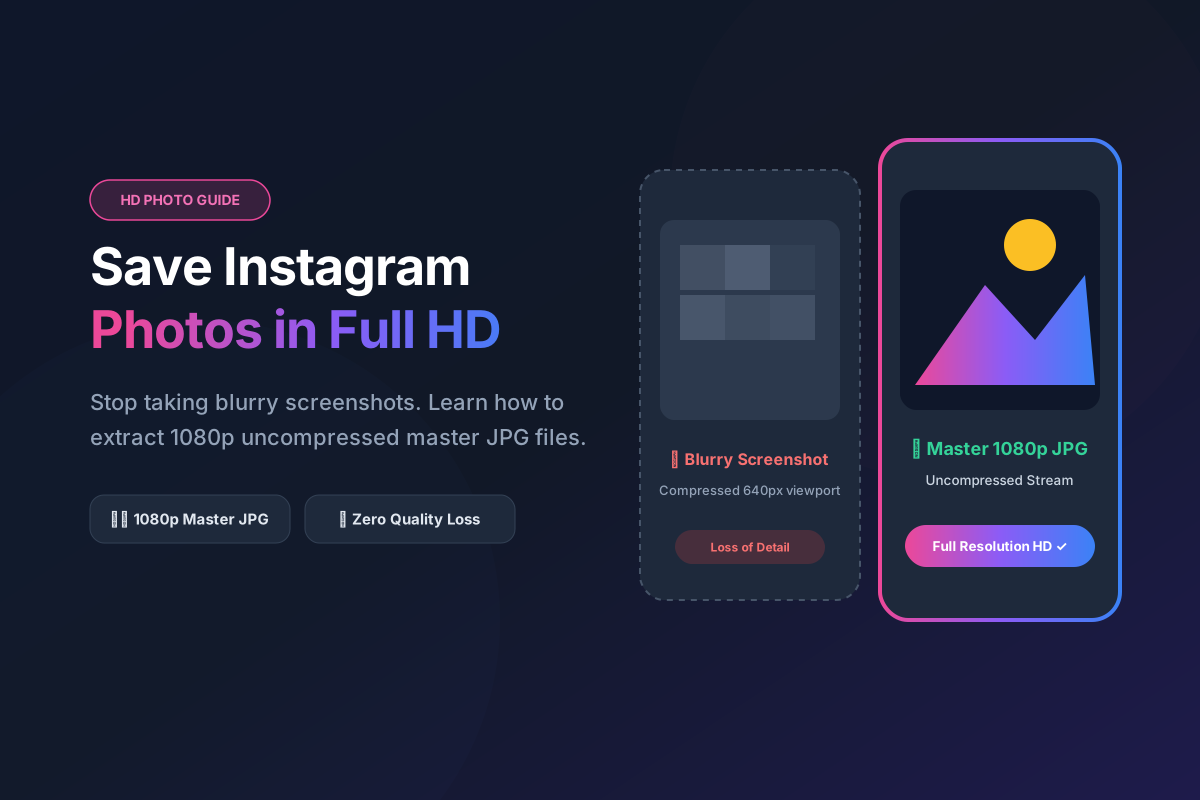
Have you ever seen a breathtaking landscape photograph or sharp digital illustration on Instagram, taken a quick screenshot on your phone, and later realized that the saved picture in your gallery looks muddy, soft, and covered in compression artifacts? This loss of fidelity is not an accident; it is the direct result of how modern smartphones and web applications handle display rendering versus original file storage.
Why Instagram Screenshots Look Blurry and Pixelated
When you view an Instagram post inside the mobile application or a desktop web browser, your device does not display the raw master file uploaded by the photographer. To conserve cellular bandwidth and ensure rapid scrolling performance across millions of daily active users, Instagram's servers dynamically downscale images to fit the physical viewport width of your specific screen—often serving compressed thumbnails as small as 640px or 750px wide. Taking a screenshot only captures this downscaled, heavily compressed display preview, along with interface icons, borders, and screen color shifts.
Even when an artist originally uploads a massive 24-megapixel photograph, Instagram standardizes still images to a maximum width of 1080 pixels (Square 1080x1080px, Portrait 1080x1350px, Landscape 1080x566px). While you cannot recover data that Instagram discarded during initial upload, our specialized tools allow you to bypass display rendering layers entirely to extract the exact 1080-pixel master JPG stored on Instagram's content delivery network.
Step-by-Step Guide: Downloading Uncompressed HD Photos
Common Mistakes That Degrade Image Quality
- Mistake 1: Saving WebP Thumbnail Previews from Page Source: Right-clicking on desktop often saves
.webpor.heicdisplay thumbnails. SpidVid retrieves the master.jpgimage container. - Mistake 2: Using Messaging Apps to Transfer Saved Photos: Emailing or WhatsApping photos between your PC and phone applies secondary compression. Use direct cloud drives or mobile browser downloads.
- Mistake 3: Cropping Screenshots on Mobile Devices: Cropping forces your phone to re-save and re-compress the picture a second time, introducing noticeable digital noise.
Ready to save crystal-clear images? Visit our Photo Downloader, paste your link, and download original high-resolution pictures right now.
Ready to Try SpidVid?
Test our high-speed, unwatermarked Instagram downloader right now.