How to Download Instagram Reels on iPhone Without Watermark
Instagram Reels have become the primary format for sharing short, viral video content. However, if you use an iPhone, you already know that the native iOS Instagram application does not provide a direct button to save Reels directly to your Camera Roll without restrictions. While some public Reels allow in-app saving, Instagram applies a distracting animated username watermark and frequently strips out copyrighted music tracks during the save process.
Additionally, Apple's iOS operating system handles file downloads differently than desktop computers or Android devices. When you download an MP4 video through mobile Safari or Google Chrome on an iPhone, the file is initially routed to the system Files app rather than directly to your Photos gallery. Understanding how to navigate this workflow allows you to quickly download uncompressed, high-definition 1080p Reels with pristine audio and zero watermarks right to your Apple device.
Step-by-Step Guide: Saving Reels to iPhone Camera Roll
Follow these four simple steps to download any public Instagram Reel directly to your iPhone using SpidVid's web tool. No third-party app installations or jailbreaking are required.
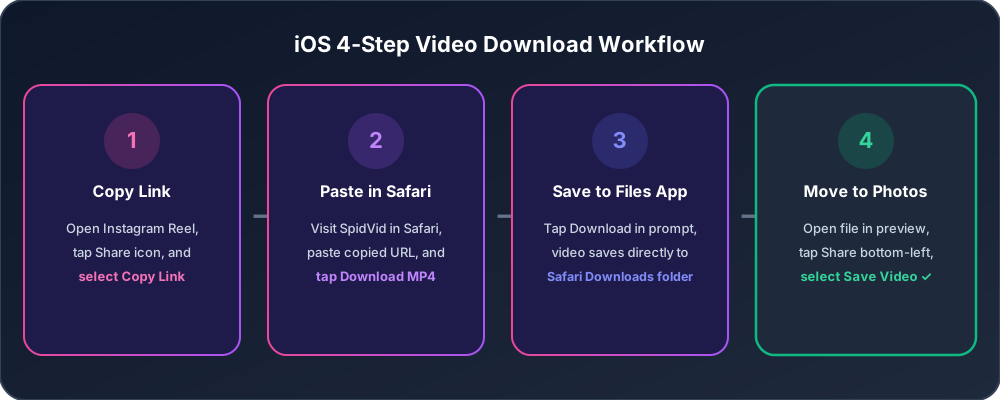
Step 1: Copy the Reel Link inside the iOS App
Open the Instagram application on your iPhone and navigate to the Reel you want to save. On the right-hand side of the video player, tap the paper airplane Share icon (or the three dots `...` icon at the bottom right). From the pop-up share sheet menu, tap the Copy Link button. You will see a brief notification confirming that the link has been copied to your iPhone clipboard.
Step 2: Paste and Process the Link in Safari
Open your preferred mobile web browser—such as Safari or Chrome—and go to the SpidVid Instagram Reels Downloader. Tap inside the input bar at the top of the page, press Paste, and tap the Download button. Our servers will immediately fetch the original MP4 video stream from Instagram.
Step 3: Download the MP4 File to the iOS Files App
Within seconds, a clean preview of your Reel will appear along with quality download options. Tap the Download MP4 (1080p) button. In mobile Safari, a system pop-up box will appear asking: "Do you want to download this file?" Tap Download. You will see a small circular progress arrow animate inside the Safari address bar at the bottom or top of your screen.
Step 4: Move the Video from Files to iPhone Photos (Camera Roll)
Once the download finishes, tap the blue downward arrow in your Safari address bar and select Downloads. Tap the saved MP4 video file to open it in iOS preview mode. To transfer this video into your main photo gallery, tap the Share icon (a square with an upward arrow) in the bottom left corner and select Save Video. The Reel is now permanently stored inside your iPhone Photos app under the Recents and Videos albums in full original quality.
Common Troubleshooting for iOS Video Downloads
Even though downloading on iOS is straightforward once you know the steps, occasional browser quirks or iOS settings can cause confusion. Here are solutions to the most common iPhone download issues:
Why Did the Video Open in a New Tab Instead of Downloading?
Sometimes, holding down a download button or using third-party browser apps causes the MP4 file to start playing in a new browser tab rather than triggering the iOS download prompt. If this occurs, tap the Share icon at the bottom of the active browser tab playing the video and select Save to Files. This manually saves the video track to your device.
How Do I Find Where Safari Saved My Video?
If you completed a download but cannot find the file in your Photos app, open the native Apple Files app on your home screen. Tap Browse at the bottom right, select On My iPhone (or iCloud Drive depending on your Safari settings), and open the Downloads folder. Your saved Reels will be listed chronologically by timestamp.
Why Avoid Screen Recording Instagram Reels on iOS?
Many iPhone users default to using the built-in iOS screen recording feature from the Control Center to capture Reels. While quick, screen recording introduces severe drawbacks:
- Visual Clutter: Screen captures record the entire phone interface, including Instagram's like counter, comment bubbles, caption overlays, and battery/clock status bars.
- Degraded Resolution and Framerate: iOS compresses screen recordings, often dropping 60fps video down to jittery 30fps and reducing image sharpness.
- Audio Distortion: Built-in microphone capturing can pick up ambient background noise or suffer from audio compression lag. Using a dedicated web grabber ensures you receive the raw, pristine file directly from the source server.
Start Downloading Clean Reels on Your iPhone Now
Now that you know how to navigate the iOS Files workflow, you can build your offline video library without restrictions. Whether you are collecting reference clips for video editing, backing up your own published creations, or saving high-definition tutorials, our tool works seamlessly on every iPhone model from the iPhone SE up to the latest iPhone 16 Pro Max.
Ready to save your favorite video? Head over to our Reels Downloader, paste your link, and get your unwatermarked MP4 in seconds.
Ready to Try SpidVid?
Test our high-speed, unwatermarked Instagram downloader right now.