How to Download Instagram Reels on Android Without Watermark
The Android operating system is celebrated for its open file system and user-friendly storage navigation. Unlike closed mobile ecosystems, Android allows direct file downloads from web browsers straight into internal storage folders that are instantly scanned and displayed by native Gallery and Google Photos apps. However, finding a reliable, high-speed tool to download Instagram Reels without watermarks can still be a challenge.
While the Google Play Store is flooded with third-party video downloading applications, many of these apps are bundled with intrusive pop-up advertisements, battery-draining background processes, and questionable privacy permissions. By using SpidVid right inside your preferred Android browser—whether it is Google Chrome, Samsung Internet, or Brave—you can extract crystal-clear 1080p MP4 Reels directly to your phone without installing software or exposing your device to bloatware.
Step-by-Step Tutorial: Saving Reels on Android Devices
Downloading clean, unwatermarked Reels on any Android smartphone or tablet takes just a few seconds. Follow this straightforward four-step walkthrough:
Step 1: Copy the Reel URL from the Instagram App
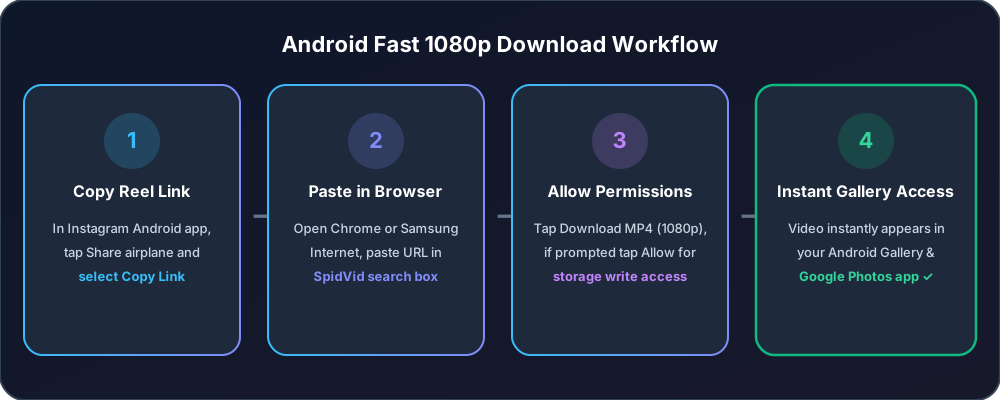
Launch the Instagram application on your Android phone and browse to the specific Reel you wish to save. Tap the Paper Airplane share button located on the right side of the video screen (or tap the vertical three dots menu in the bottom right corner). From the pop-up options menu, tap Copy Link. A brief toast message saying "Link copied" will appear at the bottom of your screen.
Step 2: Open Chrome or Samsung Internet and Paste Link
Open your favorite mobile web browser and navigate to SpidVid's Reels Downloader. Tap and hold inside the text entry box at the top of the tool interface until the Paste pop-up appears, tap Paste to insert your copied Instagram URL, and hit the Download button.
Step 3: Tap Download and Grant Storage Permissions
Our servers will immediately process the video link and display an instant preview alongside download quality tiers. Tap Download MP4 (1080p). If this is the very first time you are downloading a file through your mobile browser, your Android device may prompt you asking: "Allow Chrome to access photos, media, and files on your device?" Tap Allow to permit the file transfer.
Step 4: View the Saved Video in Your Android Gallery
A progress bar will briefly appear in your browser notifications panel. Once complete, you will see a notification popup stating "File downloaded." Tap Open directly on the notification, or simply close your browser and open your device's Gallery or Google Photos app. Your brand-new Reel will be ready for viewing and sharing right inside your `Downloads` folder with crisp 60fps playback and clean, unwatermarked visuals.
Managing Download Directories & Storage Permissions on Android
One of the greatest advantages of using Android is full control over where your media files are stored. Here is how to customize your download preferences and resolve storage hurdles:
How to Change Default Download Paths in Google Chrome
If your internal phone memory is running low and your device supports a microSD card, you can configure Chrome to route downloaded Reels directly to your external memory card. Open Google Chrome, tap the three dots menu in the top right corner, select Settings, scroll down and tap Downloads. Here, toggle on the switch for Ask where to save files or change the Download location path directly to your SD card directory.
Troubleshooting Missing Storage Access Permissions
If you tap download on SpidVid and nothing happens, your browser may be blocked from writing to device storage due to restricted permissions introduced in recent Android version updates (such as Android 14 or 15). To fix this instantly, go to your phone's Settings > Apps > Chrome (or your browser) > Permissions, tap on Photos and Videos (or Storage), and select Allow all the time.
Web Downloaders vs. Suspicious Android APKs on Google Play
Many Android users try installing third-party APK downloader apps from the Google Play Store or external APK repositories. We strongly advise against this approach for several critical reasons:
- Excessive Permission Requests: Free downloader apps frequently demand access to your contacts, SMS messages, precise location, and microphone—none of which are needed to download a public video file.
- Account Security Risks: Many sketchy apps require you to log into your personal Instagram account directly through their custom interface, putting your login credentials at high risk of theft or triggering Instagram's account ban triggers for third-party automation.
- Background Resource Drain: Installed downloader apps run persistent background services that consume RAM, drain your battery, and serve push notification spam. SpidVid runs 100% inside your web browser and closes completely the second you close the tab.
Archive High-Definition Reels on Your Android Device Today
Whether you are using a Samsung Galaxy, Google Pixel, OnePlus, Xiaomi, or Motorola smartphone, SpidVid delivers the fastest, cleanest video extraction experience on the web. Skip the slow screen recording methods and avoid sketchy APK installations.
Ready to save pristine videos directly to your gallery? Jump over to our Reels Downloader, paste your link, and enjoy unwatermarked MP4 downloads in seconds.
Ready to Try SpidVid?
Test our high-speed, unwatermarked Instagram downloader right now.